Text to image
Describe a picture in a sentence and get it back, in whatever shape you need.
A sentence in, pictures out. The one most people start with.
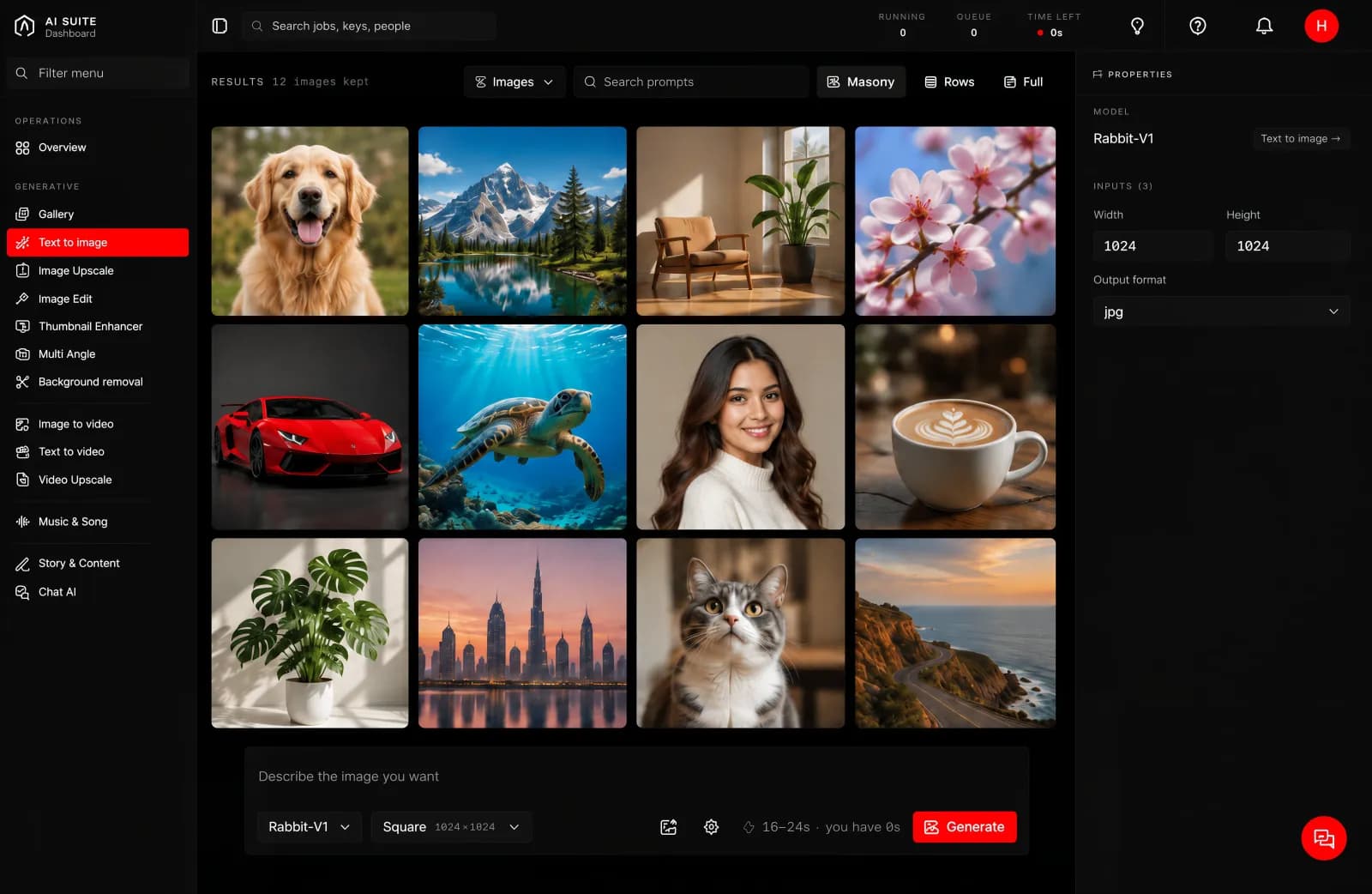
What it is for
Making a picture that does not exist yet. Product shots, backgrounds, mock-ups for a pitch, artwork for a post, a stand-in image while you wait for a real photograph.
What you give it
A description. Write it the way you would explain the picture to a person. Say what the thing is, where it is, and what the light is doing.
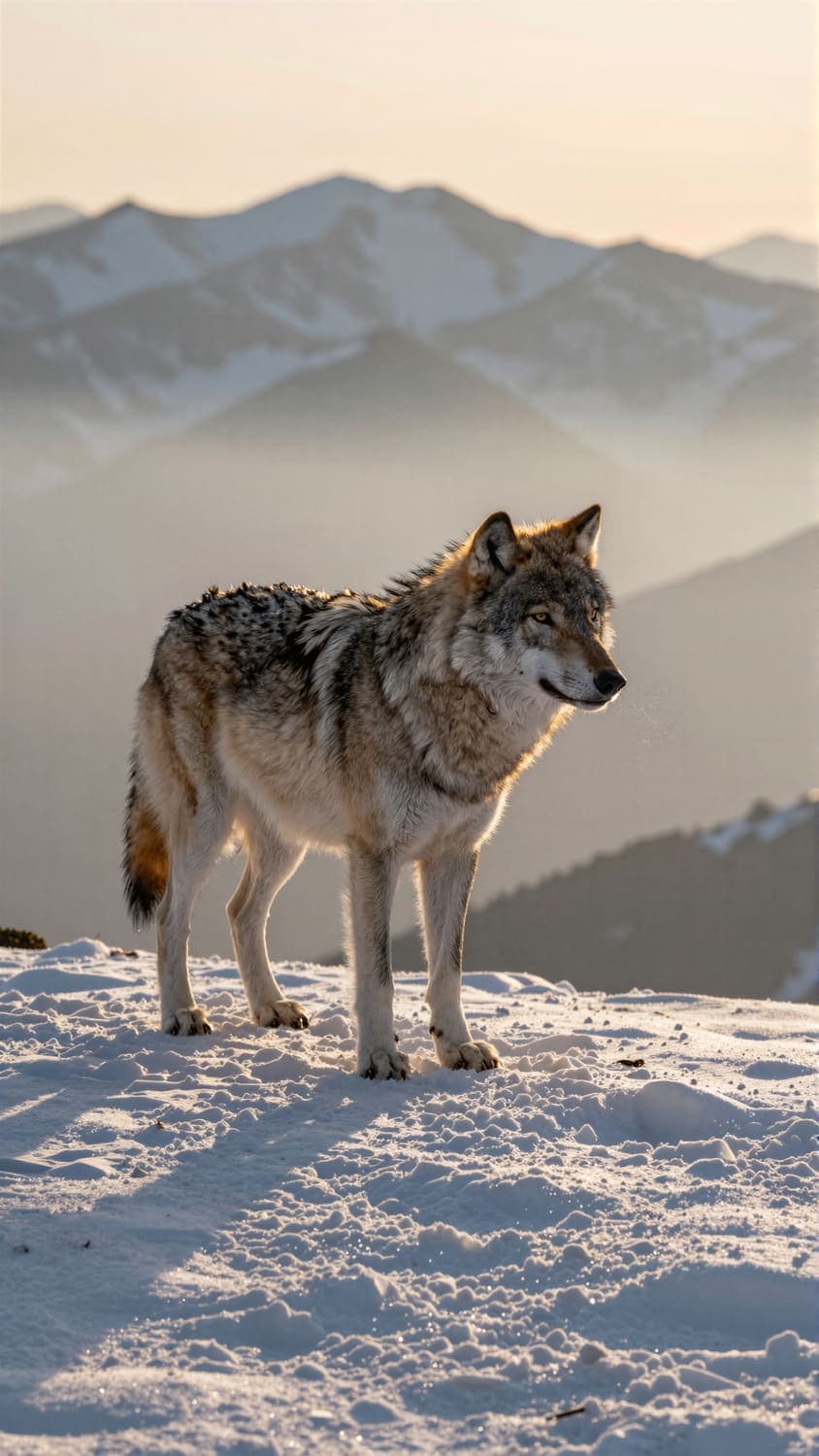
A grey wolf alone on a snowy ridge at dawn, mist below, shot on a long lens.
A shape. Square for posts, portrait for stories and reels, landscape for banners and slides. The shapes are named for what you would use them for.
How many versions. Ask for more than one. Four descriptions of the same idea land differently and you want to choose.
What you get back
Finished pictures at full resolution, straight into your gallery, ready to download or feed into another tool.
“A majestic grey wolf standing alone on a snowy mountain ridge, mist below, cold morning light.”
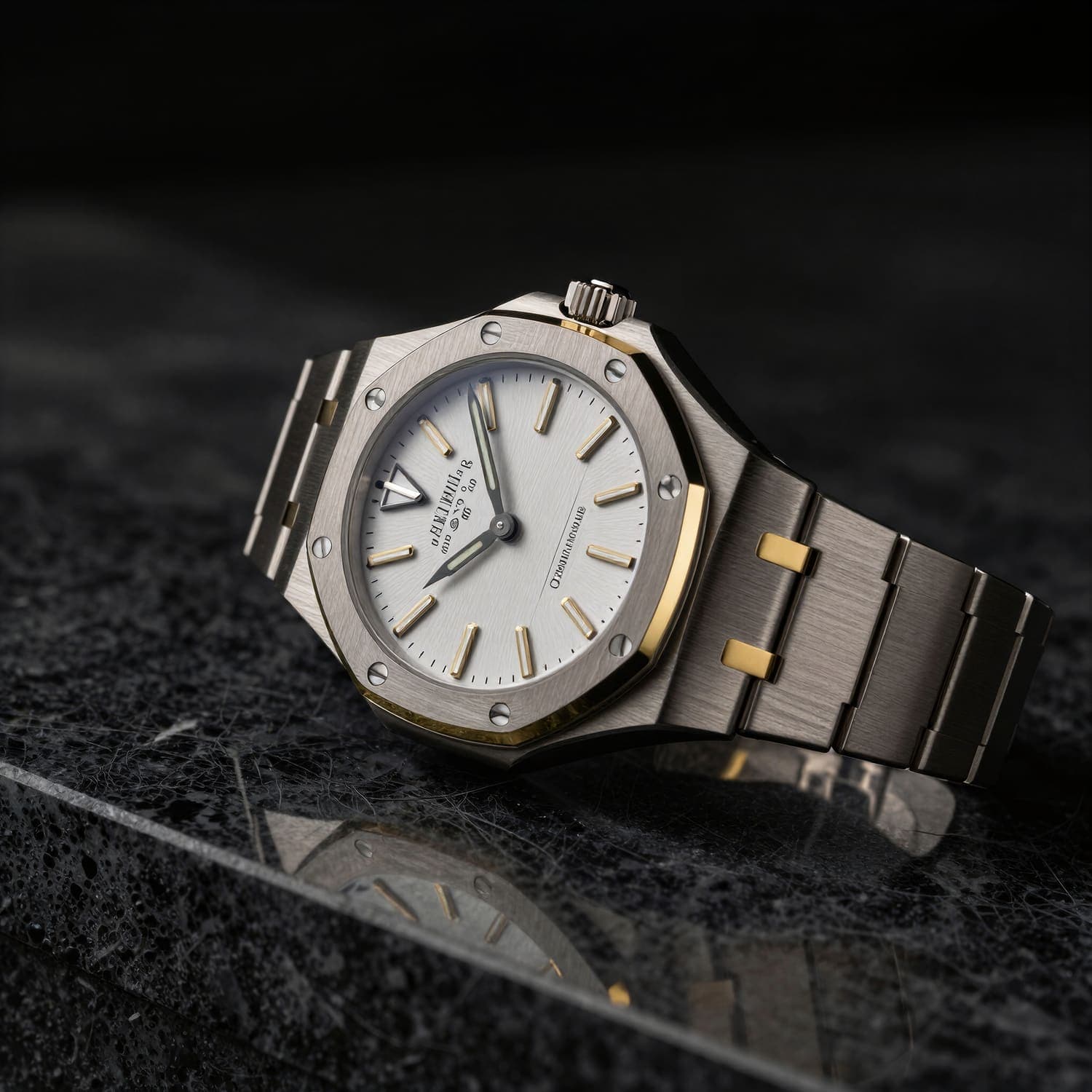
“A premium mechanical wristwatch resting on dark marble, dramatic side light, product photography.”
The model
One model on this page, so there is nothing to choose:
| Model | What it does |
|---|---|
| Rabbit-V1 | Makes pictures from a description. Takes your prompt, the size you want, and how many versions to make in one press. |
Size, length and time
Two things decide how long a run takes, and both are yours to choose:
- A larger picture takes longer than a smaller one.
- A longer clip takes longer than a shorter one.
That is the whole rule, and it holds for every tool in the console. The button quotes you before you press, so you never have to work it out yourself. Change the size or the length and watch the estimate move.
How long it takes
Seconds rather than minutes for a single picture. The button quotes you before you press, and the quote is measured from real runs at the settings you chose.
Good to know
- Text inside a picture is unreliable. Any tool of this kind will get a word on a shop sign wrong more often than right. Add the words afterwards in a design tool.
- Hands, crowds and reflections are the usual weak spots. Ask for a composition that avoids them, or generate a few versions and pick.
- The same sentence gives a different picture each time. That is the tool working, not failing. If you want a specific one back, keep it in the gallery.
Getting more out of it
Change one thing at a time. If it is close but the light is wrong, only change the light. Rewriting the whole sentence gives you a new picture rather than a better version of the one you liked.
Words that reliably change the result:
- The camera. "Close-up", "wide shot", "from below", "long lens".
- The light. "Morning light", "studio lighting", "backlit", "overcast".
- The finish. "Photograph", "illustration", "flat colour", "film grain".
Once you have a picture you like, it becomes the input for Image Edit, Image to video or Multi Angle.