Image Edit
Hand it a picture and say what should be different.
A picture and an instruction in, a new picture out.
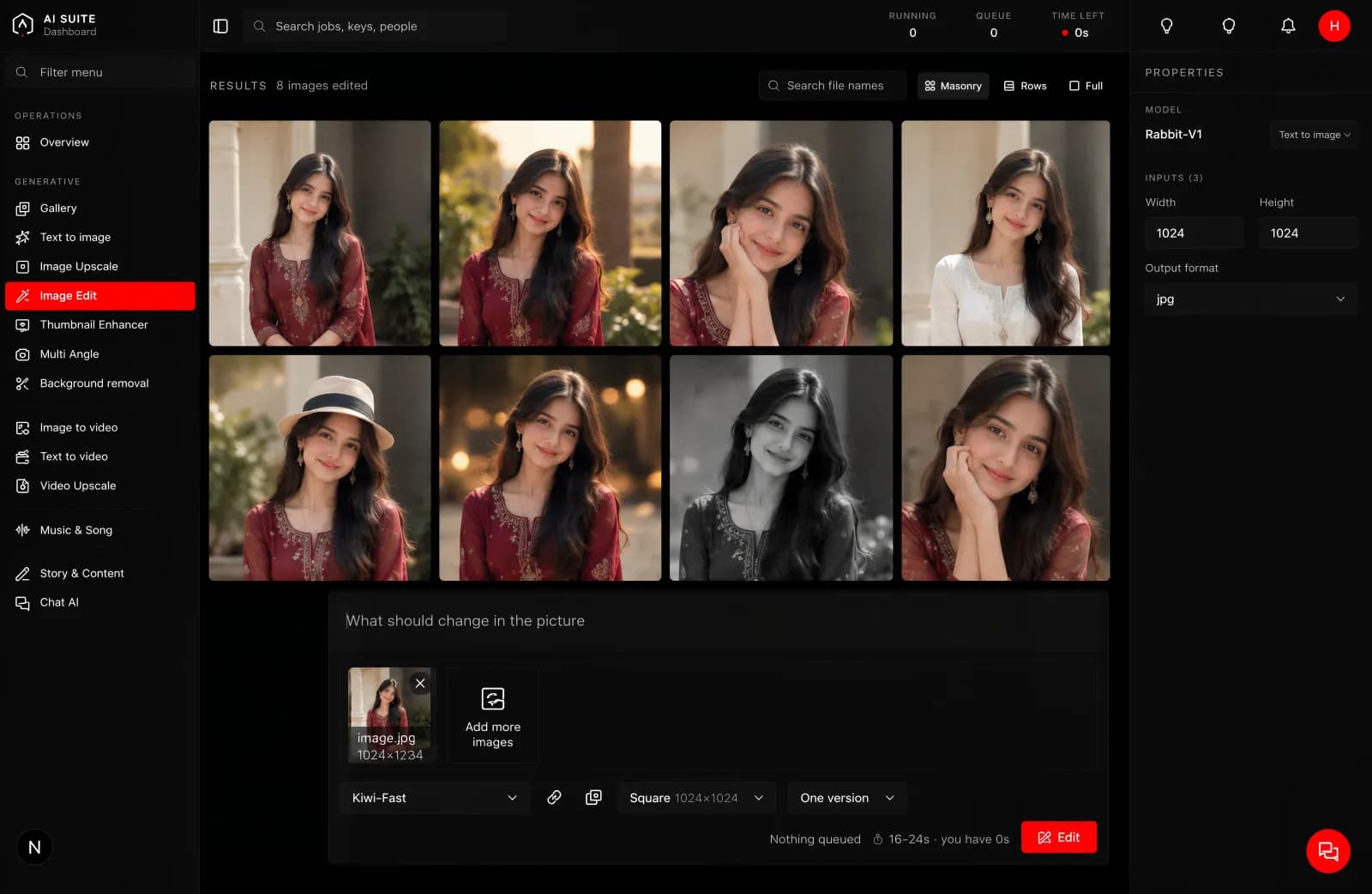
What it is for
Changing something in a picture you already have without opening an editor. Swapping a background, changing a colour, removing something, adding something, or restyling the whole frame.
What you give it
The picture. Upload it, or pick one already in your gallery.
What should be different. An instruction, not a description of the whole image. Say what to change and leave the rest alone.
Make the jacket red instead of black.
Put this on a plain studio background.
Remove the person in the background on the left.
What you get back
A new picture. The original is untouched and stays in your gallery, so you can always go back or try a different instruction on the same source.
The models
Two, and they do the same job. The difference is how many pictures you can hand in at once.
| Model | Pictures it takes |
|---|---|
| Kiwi-Fast | Up to four |
| Pineapple-Fast | Up to three |
Both take your instruction and the shape you want back. If you are editing one picture, either will do. Start with Kiwi-Fast and try the other if the result is not what you wanted. They read the same instruction differently, which is worth knowing when one of them refuses to do what you asked.
Size, length and time
Two things decide how long a run takes, and both are yours to choose:
- A larger picture takes longer than a smaller one.
- A longer clip takes longer than a shorter one.
That is the whole rule, and it holds for every tool in the console. The button quotes you before you press, so you never have to work it out yourself. Change the size or the length and watch the estimate move.
How long it takes
Comparable to making a picture from scratch. Quoted before you press.
Good to know
- It rebuilds the picture rather than painting over it. Small details away from your instruction can shift slightly. For a change that must not touch anything else, a traditional editor is still the better tool.
- One instruction at a time works better than five. Run it twice rather than asking for everything at once.
- Faces and logos are where small shifts are most noticeable. Check those before you publish.
Getting more out of it
Be specific about what stays. "Change the background to a studio backdrop, keep the product exactly as it is" gives a better result than "studio background".