Image Upscale
Make a picture bigger without it going soft.
A picture in, a larger picture out.
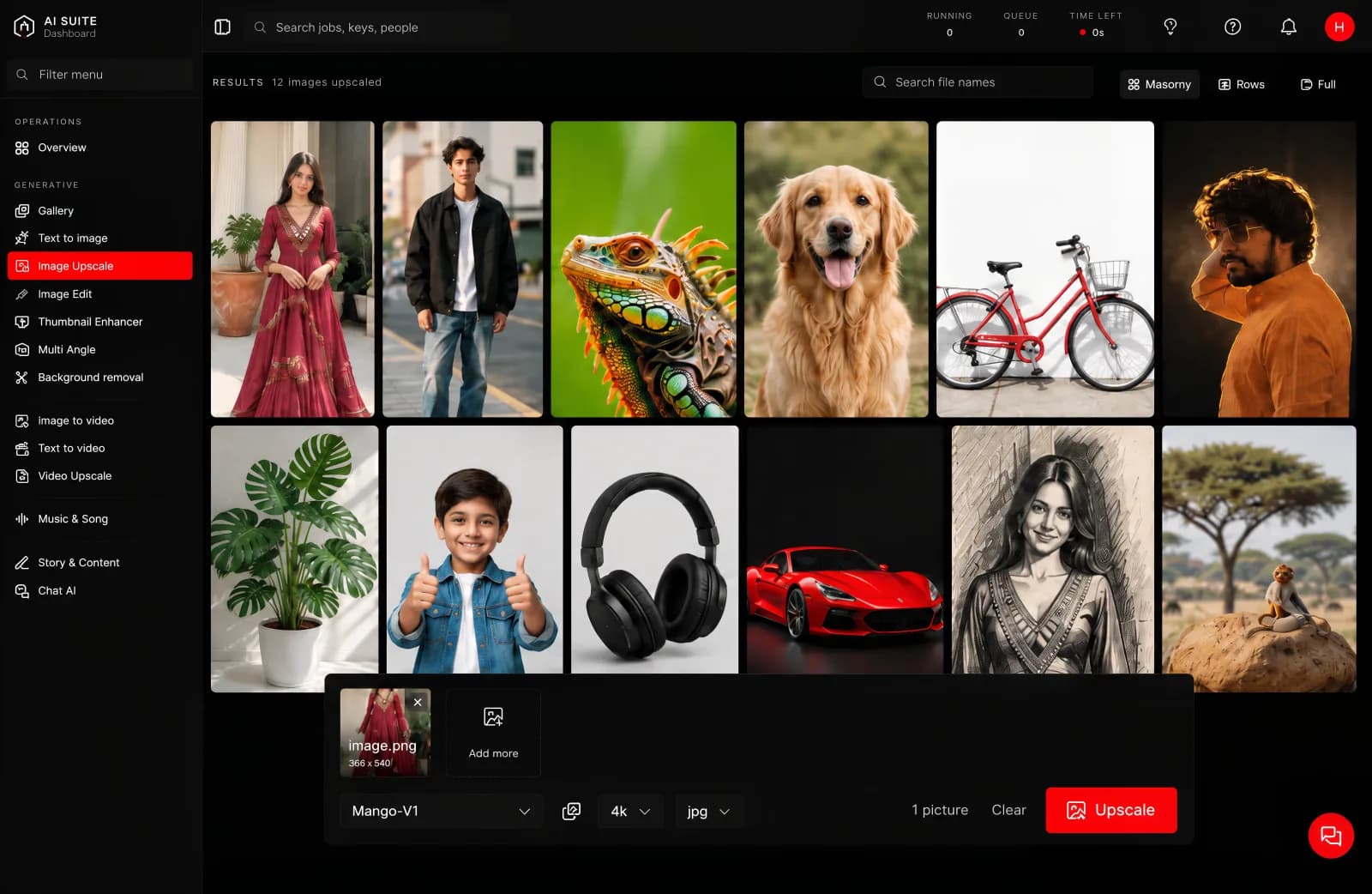
What it is for
Getting a small picture up to a size you can print, put on a billboard, or use full-width on a screen. Also useful for rescuing an old photograph or a low-resolution logo.
What you give it
The picture, and how much larger you want it. The tool keeps the shape of the original, so nothing is cropped or stretched.
What you get back
The same picture at a larger size, with the detail rebuilt rather than simply stretched.
The model
| Model | What it does |
|---|---|
| Mango-V1 | Rebuilds the picture at a larger size. You choose how much larger. |
Size, length and time
Two things decide how long a run takes, and both are yours to choose:
- A larger picture takes longer than a smaller one.
- A longer clip takes longer than a shorter one.
That is the whole rule, and it holds for every tool in the console. The button quotes you before you press, so you never have to work it out yourself. Change the size or the length and watch the estimate move.
The scale is the thing to watch here: it is the setting that moves the estimate most on this page.
How long it takes
Longer than most picture tools, and it grows with the size you ask for. Quoted before you press.
Good to know
- It rebuilds detail, it does not invent facts. Text that was unreadable in the original will come back sharp but still wrong. A face too small to make out will come back as a face, not necessarily that person's face.
- Start from the best copy you have. Upscaling a screenshot of a photograph gives a worse result than upscaling the photograph.
- Bigger is not always better. Going far beyond what the original holds gives a clean but plasticky look.
Getting more out of it
Use it last. Crop, edit and choose first, then upscale the one you are keeping. It is the most expensive step and there is no reason to spend it on versions you will throw away.