Image to video
Bring your photos to life.
A picture in, a moving clip out.
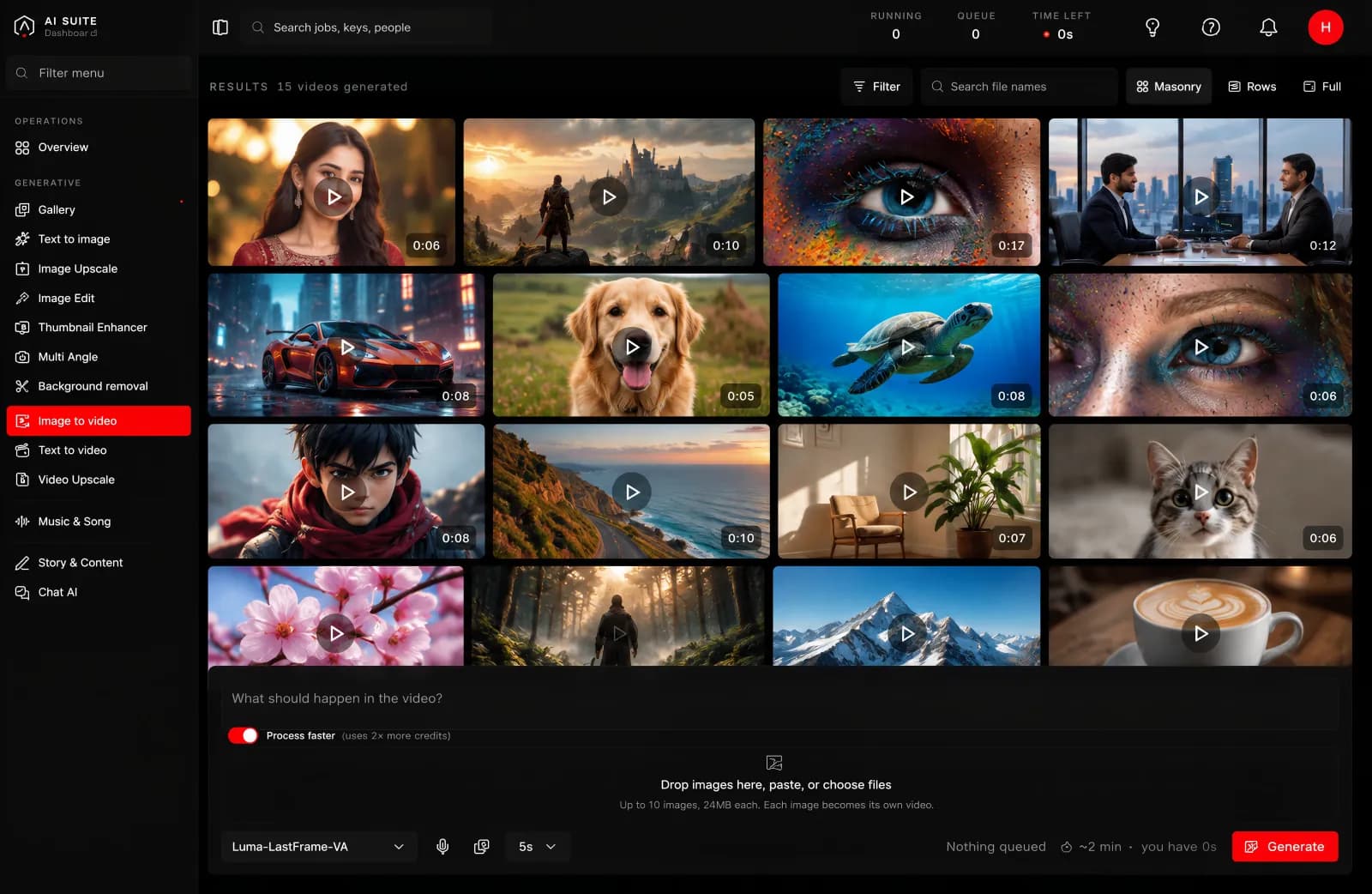
What it is for
Turning a still you already have into motion. A product photograph that drifts and catches the light, a landscape with moving cloud, a portrait that breathes. The most reliable way to get video, because the look is already decided by your picture.
What you give it
The picture. This decides everything about how the clip looks.
A sentence, if you want one. Optional. It steers what moves: "slow push in", "the fabric moves in the wind". It does not summon anything new. Left empty, it reads the picture and animates what it finds.
How long. A few seconds up to fifteen.
What you get back
A video file, at the shape of the picture you gave it, ready to download or post.
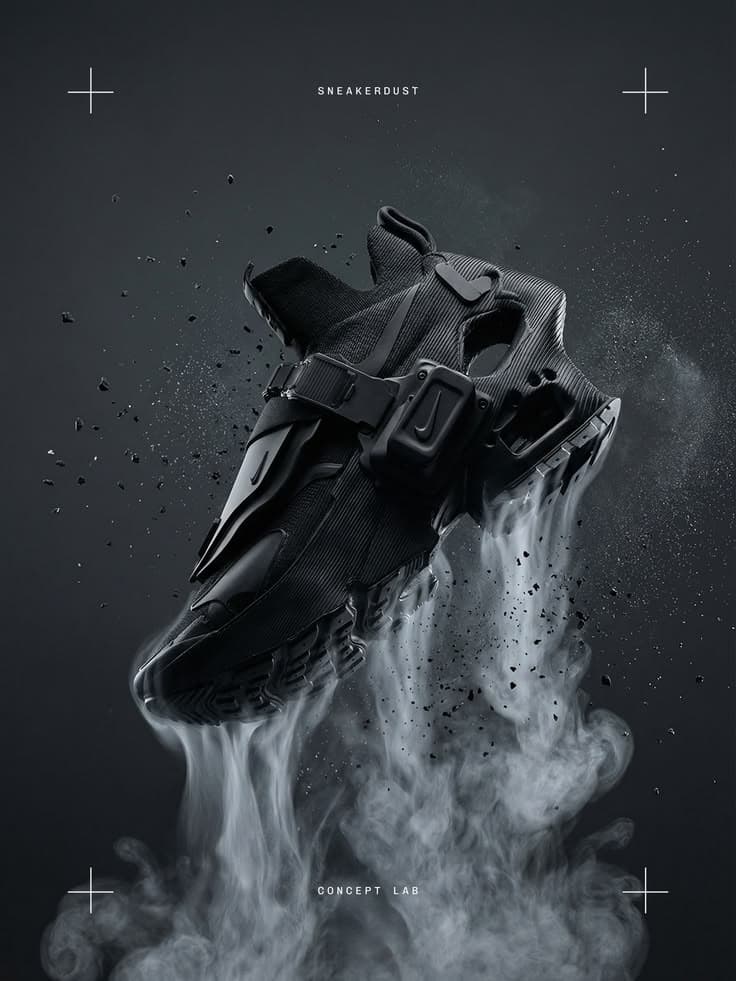
The models
Four, and the difference between them is where your picture sits in the clip. That is the only thing you need to decide.
| Model | Your picture is | Use it when |
|---|---|---|
| Lion-FirstFrame-VA | the first frame | You have the opening shot and want the clip to move on from it. The usual choice. |
| Lion-LastFrame-VA | the last frame | You want the clip to arrive at a particular image: a product reveal, a logo landing. |
| Lion-FirstLastFrame-VA | both ends | You have a start and a finish and want the journey between them. Give it two pictures. |
| Lion-Omni | one of up to nine | You have several pictures and want one clip out of them, and you want to pick the shape it comes back in. |
All four take an optional sentence to steer the motion, and all four offer clip lengths of 3, 5, 8, 10 or 15 seconds.
Process faster
Both video pages carry one switch, and it is the biggest single decision on the screen, bigger than the length, bigger than the shape.
- On (the default): the model runs in its quick mode. Cheaper, faster, and good enough to tell whether an idea works.
- Off: full quality. Measured across the runs behind it, that is about twice the time, and the cost moves with it. The exact figure for your settings is on the button before you press, so you never have to guess.
Use it on. Trying a prompt, testing whether a photograph animates well, showing somebody a rough. Nearly all of the time, on a first attempt.
Turn it off for the one clip you are actually going to publish, once you already know the prompt and the picture are right.
The habit worth forming is: find it fast, then run it once properly. Running everything at full quality is the most common way to spend a balance on work you were always going to throw away.
On this page the switch does one extra thing: with it on, your picture is fitted inside a smaller box before it is sent. That is part of why it is quicker, and it is another reason to turn the switch off for the final run, so the clip is made from every pixel of the photograph you chose.
Size, length and time
Two things decide how long a run takes, and both are yours to choose:
- A larger picture takes longer than a smaller one.
- A longer clip takes longer than a shorter one.
That is the whole rule, and it holds for every tool in the console. The button quotes you before you press, so you never have to work it out yourself. Change the size or the length and watch the estimate move.
How long it takes
It takes minutes, not seconds, and the two things that move it are the size and the length. As a rough shape, measured over five hundred real runs:
- A short clip at a feed size, with Process faster on: two to three minutes.
- The same clip at full HD: five to ten minutes.
- Fifteen seconds at full HD, at full quality: the better part of an hour.
Read those as an order of magnitude rather than a promise. The spread is wide: the same settings have come back in a quarter of the usual time and in four times it, because how busy the machines are counts too. The estimate on the button is the one that knows your settings, and it is measured from runs of exactly those settings.
Good to know
- The picture decides the look. If the still is soft or badly lit, the clip will be too. Time spent choosing the frame is worth more than time spent on the sentence.
- Ask for less motion than you think. Subtle movement reads as expensive. Large movement is where these tools show their limits.
- Faces and hands move less convincingly than objects, cloth and landscape.
Getting more out of it
Make the still first with Text to image or pick an angle from Multi Angle, choose the frame you like best, and only then animate it. If you need the clip larger, finish with Video Upscale.